 English
English
English
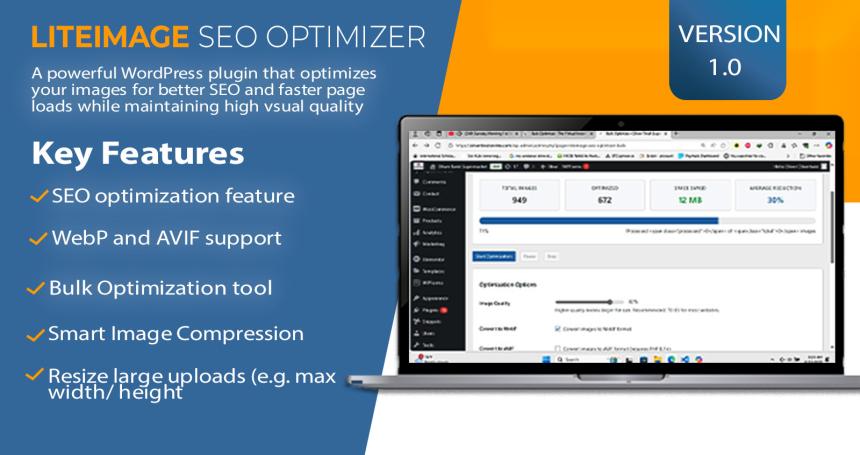
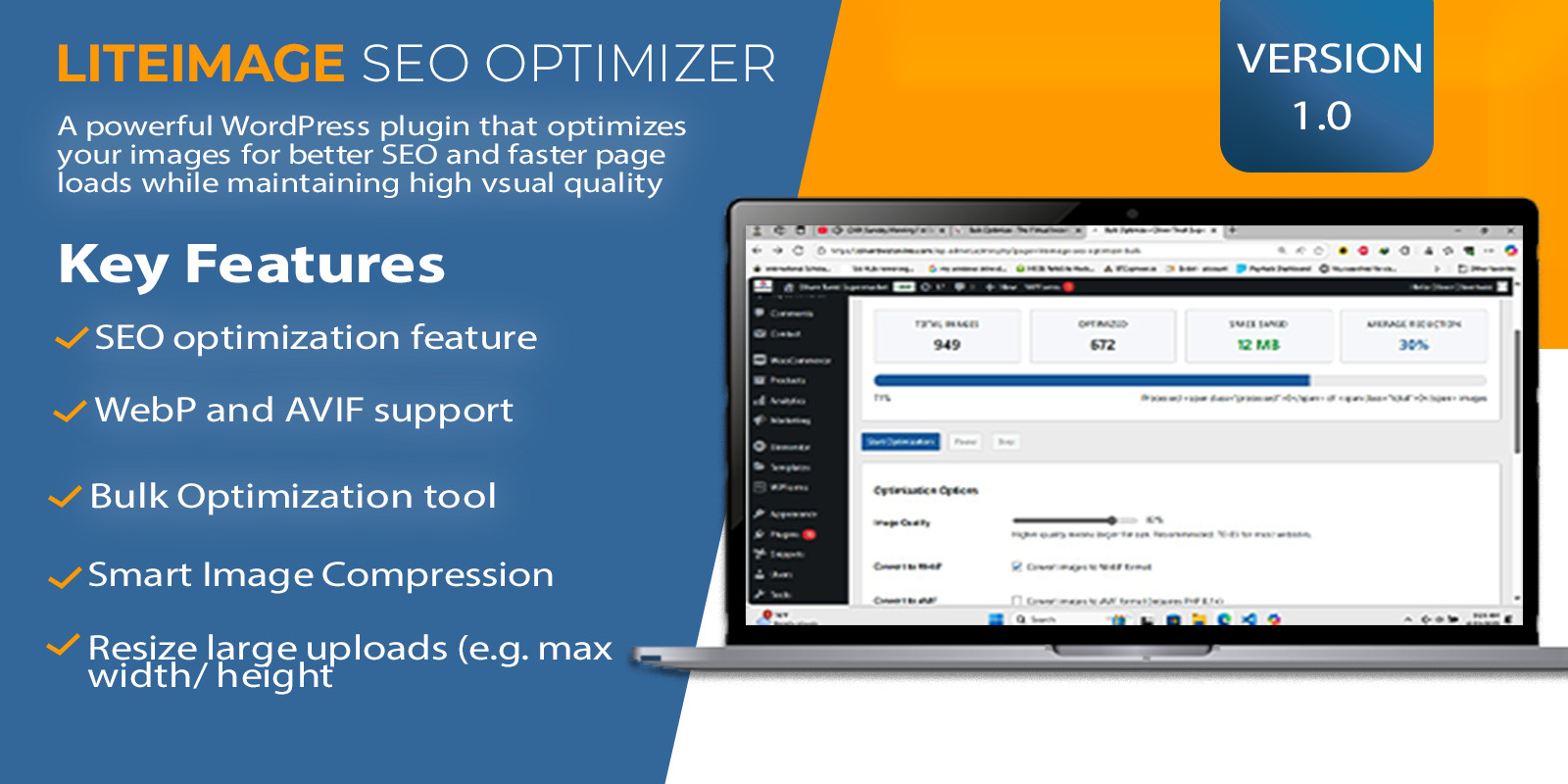
**LiteImage SEO Optimizer** is a comprehensive WordPress plugin designed to optimize images for better performance, SEO, and accessibility. The plugin automatically compresses, resizes, and converts images to next-generation formats while maintaining visual quality.
### Key Benefits
- **Performance**: Reduce image file sizes by up to 80% without quality loss
- **SEO**: Automatic alt text generation and XML sitemap integration
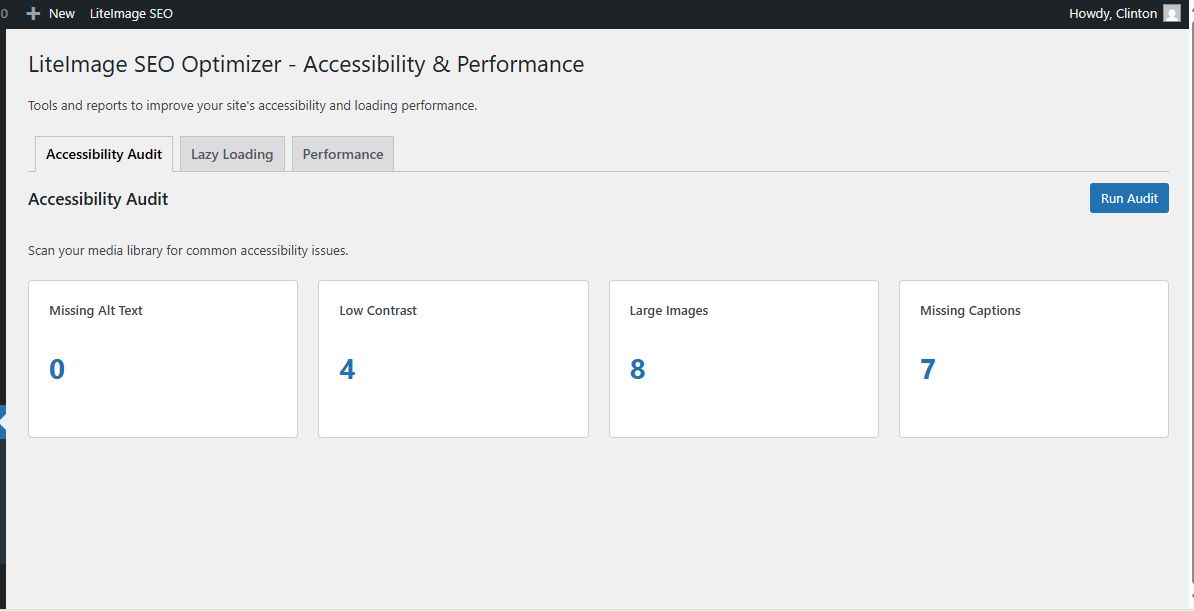
- **Accessibility**: Built-in accessibility auditing and compliance tools
- **WooCommerce**: Full integration with WooCommerce product images
- **User-Friendly**: Intuitive dashboard with real-time progress tracking
LIVE DEMO:
https://clintsax.getbetterguide.net/wp-admin
Username:Liteimage
Password:Liteimage
## Features
- **Automatic Image Optimization**: Resize, compress, and convert images to WebP/AVIF on upload.
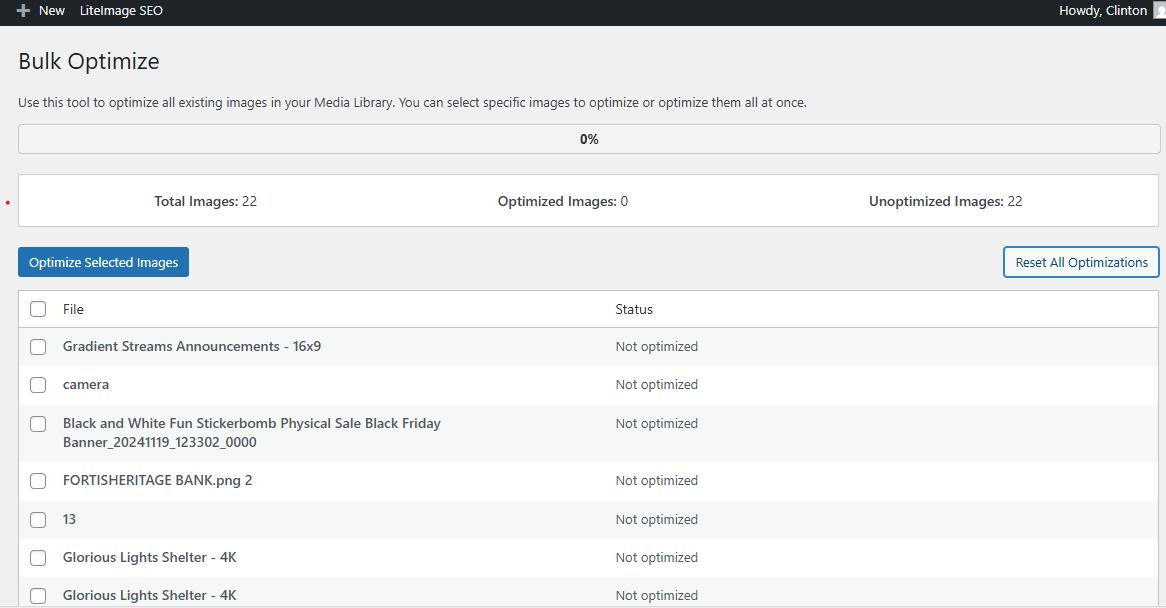
- **Bulk Optimizer**: Optimize your entire media library in one click, with progress tracking and per-image status.
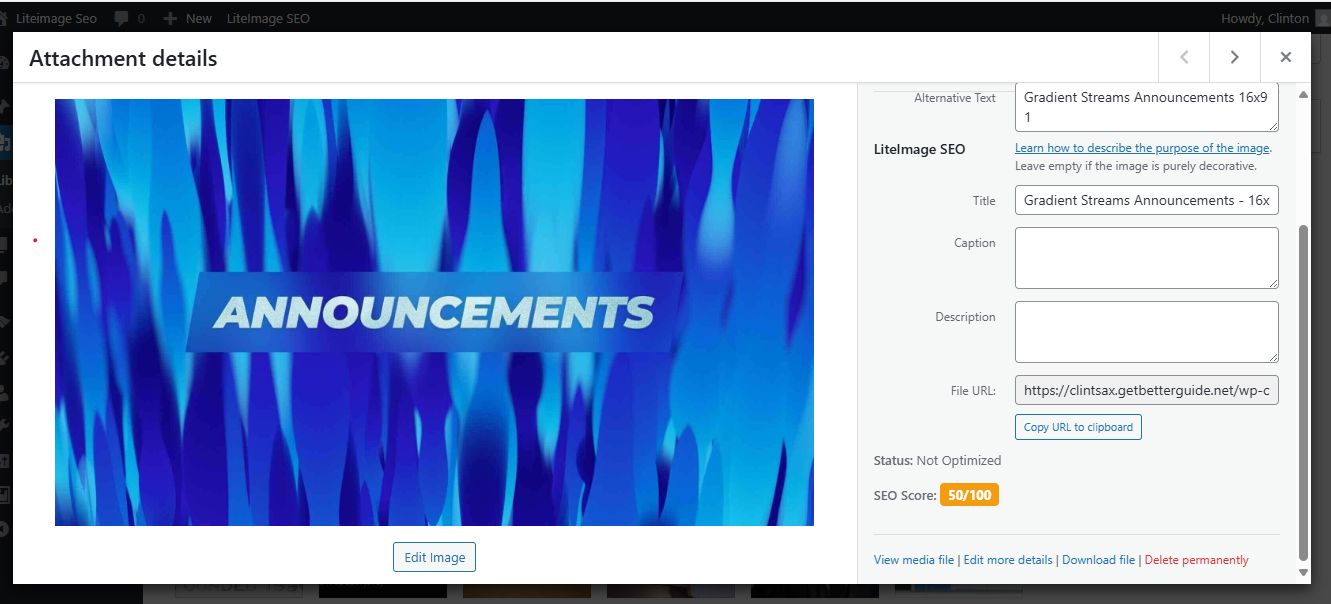
- **SEO Score**: See a clear SEO score (0/50/100) for every image in the Media Library, based on optimization and alt text.
- **Automatic Alt Text**: Generate alt text from filenames or WooCommerce product titles.
- **Next-Gen Formats**: Serve WebP/AVIF images to supported browsers for maximum speed.
- **XML Sitemap Integration**: Add next-gen image URLs to your sitemap for better indexing.
- **Dashboard Widget**: View overall optimization stats and space savings at a glance.
- **WooCommerce Support**: Fully compatible with WooCommerce product images and galleries.
- **Compatibility Checker**: See if your server supports all required image formats and features.
System Requirements
- **WordPress**: 6.7 or higher
- **PHP**: 7.4 or higher
- **Memory Limit**: 256MB recommended
- **Image Libraries**: GD or Imagick extension
Installation
### Method 1: WordPress Admin Panel
1. Download the `liteimage-seo-optimizer.zip` file
2. Go to **WordPress Admin > Plugins > Add New**
3. Click **Upload Plugin** and select the ZIP file
4. Click **Install Now** and then **Activate Plugin**
### Method 2: Manual Installation
1. Extract the plugin files to `/wp-content/plugins/liteimage-seo-optimizer/`
2. Go to **WordPress Admin > Plugins**
3. Find "LiteImage SEO Optimizer" and click **Activate**
### Post-Installation Setup
1. Navigate to **Settings > LiteImage SEO Optimizer**
2. Review the compatibility checker results
3. Configure your preferred optimization settings
4. Run the bulk optimizer for existing images
---
## Configuration
### General Settings
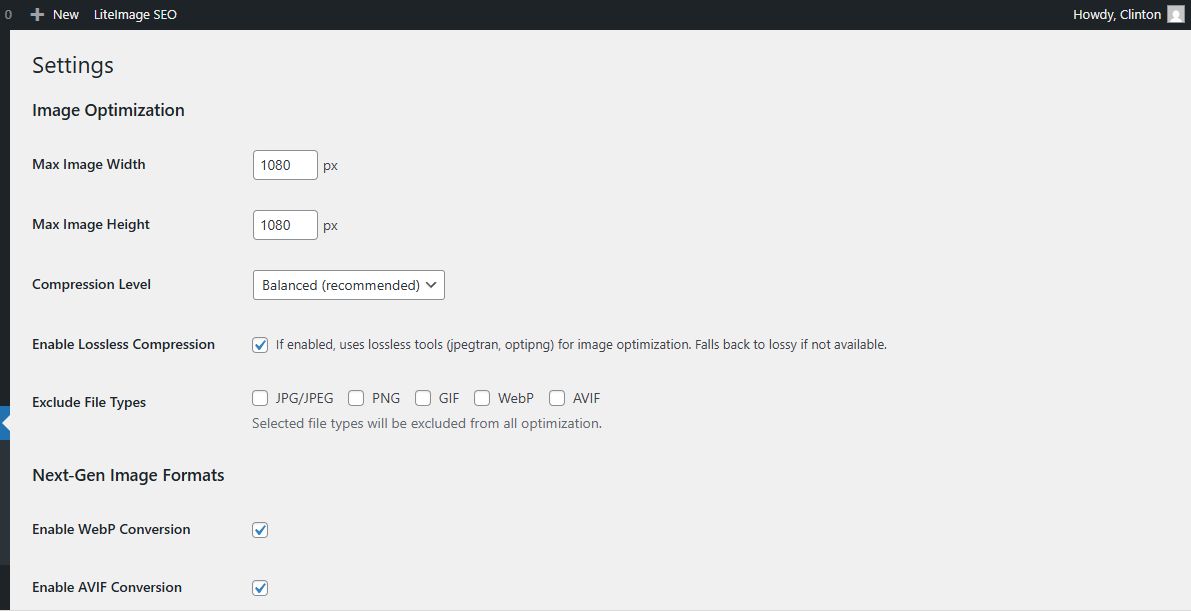
#### Image Optimization
- **Max Width**: Maximum width for uploaded images (default: 1920px)
- **Max Height**: Maximum height for uploaded images (default: 1080px)
- **Compression Level**:
- High Quality (recommended)
- Balanced
- Maximum Compression
#### Next-Gen Formats
- **Enable WebP**: Convert images to WebP format
- **Enable AVIF**: Convert images to AVIF format (newer, better compression)
- **Quality Settings**: Adjust quality for each format (default: 85%)
#### SEO Settings
- **Auto Alt Text**: Generate alt text automatically
- **Alt Text Source**:
- Filename-based
- WooCommerce product title
- Custom pattern
- **XML Sitemap**: Include optimized images in sitemap
### Advanced Settings
#### Performance
- **Lazy Loading**: Enable for below-the-fold images
- **Backup Original**: Keep original images for restoration
- **Batch Size**: Number of images processed per batch (default: 10)
#### Accessibility
- **Auto Fix Issues**: Automatically fix common accessibility problems
- **Contrast Checking**: Check image contrast ratios
- **Size Warnings**: Warn about oversized images
---
## Features & Usage
### Automatic Optimization
The plugin automatically optimizes images when they are uploaded to WordPress:
1. **Upload an image** through the Media Library
2. **Plugin processes** the image automatically
3. **Optimized version** replaces the original
4. **WebP/AVIF versions** are created (if enabled)
5. **Alt text** is generated (if enabled)
### Manual Optimization
#### Single Image Optimization
1. Go to **Media Library**
2. Select an image
3. Click **Optimize** in the image details
4. View optimization results and space saved
#### Bulk Optimization
1. Navigate to **Media > Bulk Optimize**
2. Review the image list and settings
3. Click **Start Bulk Optimization**
4. Monitor progress in real-time
5. View detailed results and statistics
### SEO Score System
Each image displays an SEO score (0/50/100):
- **50 points**: Image is optimized (resized/compressed)
- **50 points**: Alt text is present and descriptive
**Score Indicators:**
- 🟢 100/100: Fully optimized
- 🟡 50/100: Partially optimized
- 🔴 0/100: Needs optimization